How to Build a Support Workflow with Tags, Filters, and Assignments (A Starter Blueprint for Small Teams)

Support Workflow for Small Teams: Shared Inbox Organisation with Tags, Filters and Assignments
A good support workflow for a small team comes down to three things: a short list of tags that say what each conversation is about, a handful of saved filters that show what needs attention right now, and clear assignment habits so nothing sits unowned. You can set all three up in an afternoon, then trim and tweak monthly as you learn what your customers actually ask.
That's the whole idea. The rest of this post is a blueprint for a team of two to five people: a starter tag list, seven filters to copy, and assignment rules that don't need a workshop or expensive tooling. Grab a cuppa and let's build it. ☕
One note first: these ideas work in any shared inbox, but filter options, status names and the way "working hours" are counted vary from tool to tool. I'll flag where that matters.
Why a support workflow beats heroics
Every small team has one. The person who just knows where everything is. They remember that the customer from last Tuesday was promised a refund, which emails are actually urgent, and which chat is from the founder's friend. They're brilliant, and the whole team quietly leans on them.
Then they go on holiday. Within two days, replies slip, someone answers the same email twice, and a refund request sits untouched because nobody realised it was theirs. Nobody did anything wrong. The system was living in one person's head.
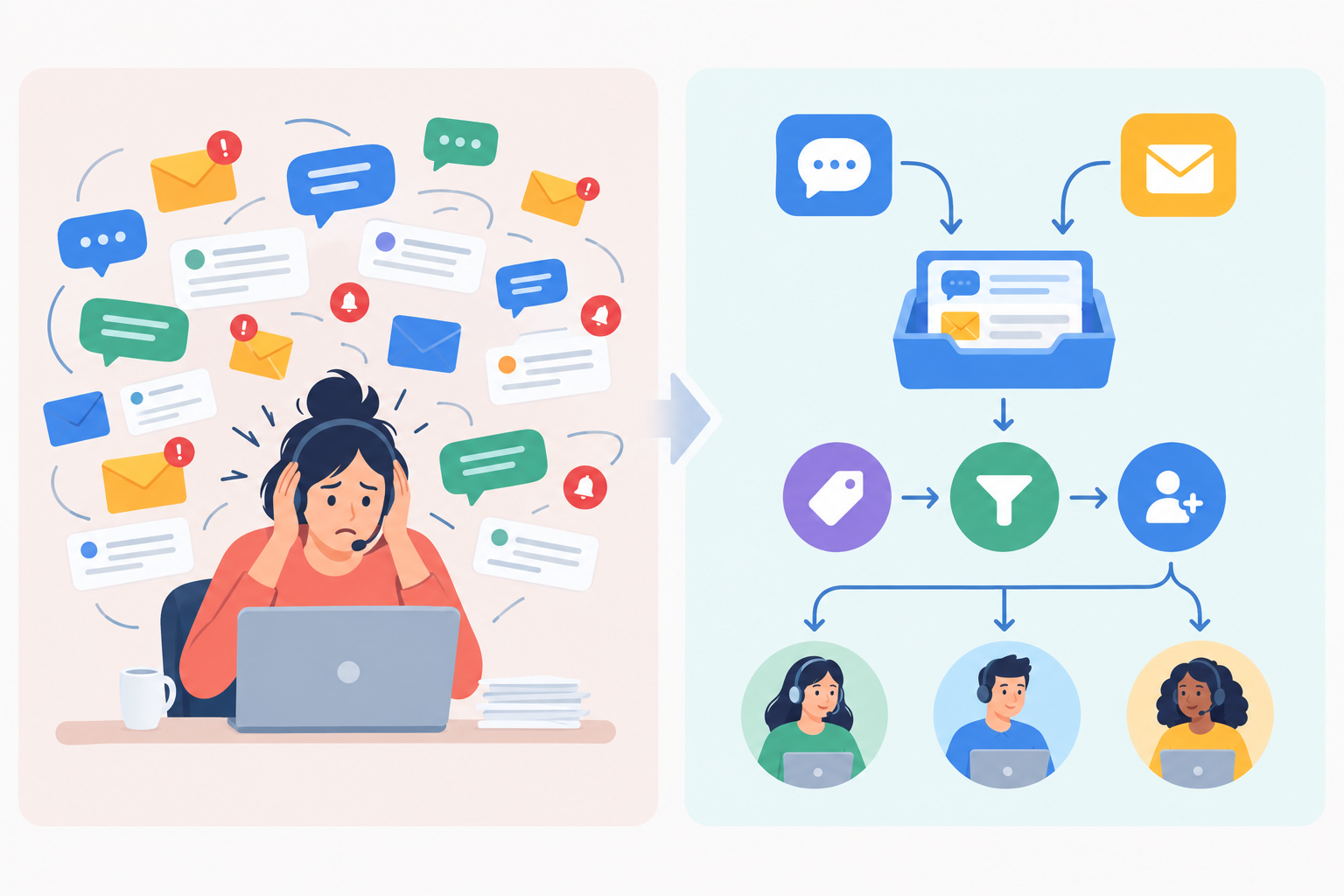
A support workflow moves that knowledge into the inbox itself, so anyone can open it and see what's happening. That matters even more when live chat and email share one inbox. You get real speed, but you also get two new risks: two people replying to the same message, or everybody assuming someone else has it. Both feel awful from the customer's side.
The three building blocks of shared inbox organisation
- Tags tell you what a conversation is about.
- Filters show you what needs attention right now.
- Assignments make sure every conversation has a clear owner.
This is a starter system for a team of around three. There are no escalation tiers and no 40-page handbook. It's the lightest version that still works.
One practical point: if your help desk charges per seat, teams often keep the inbox in the hands of two or three people to save money, and that's exactly how the hero problem starts. Check what it would cost to give everyone access, including the founder who occasionally steps in and the developer who answers bug reports. Shared ownership is much easier when adding a person doesn't add a bill.
Design a simple shared inbox tag set
Here's the principle I'd tape to your monitor: a tag should answer "what is this about?" and help you act or report. If it does neither, skip it.
It's tempting to create a tag for everything. Resist. A tag you'll never filter by or count in a report is just clutter, and clutter is what makes people stop tagging at all.
A starter tag taxonomy for small support teams
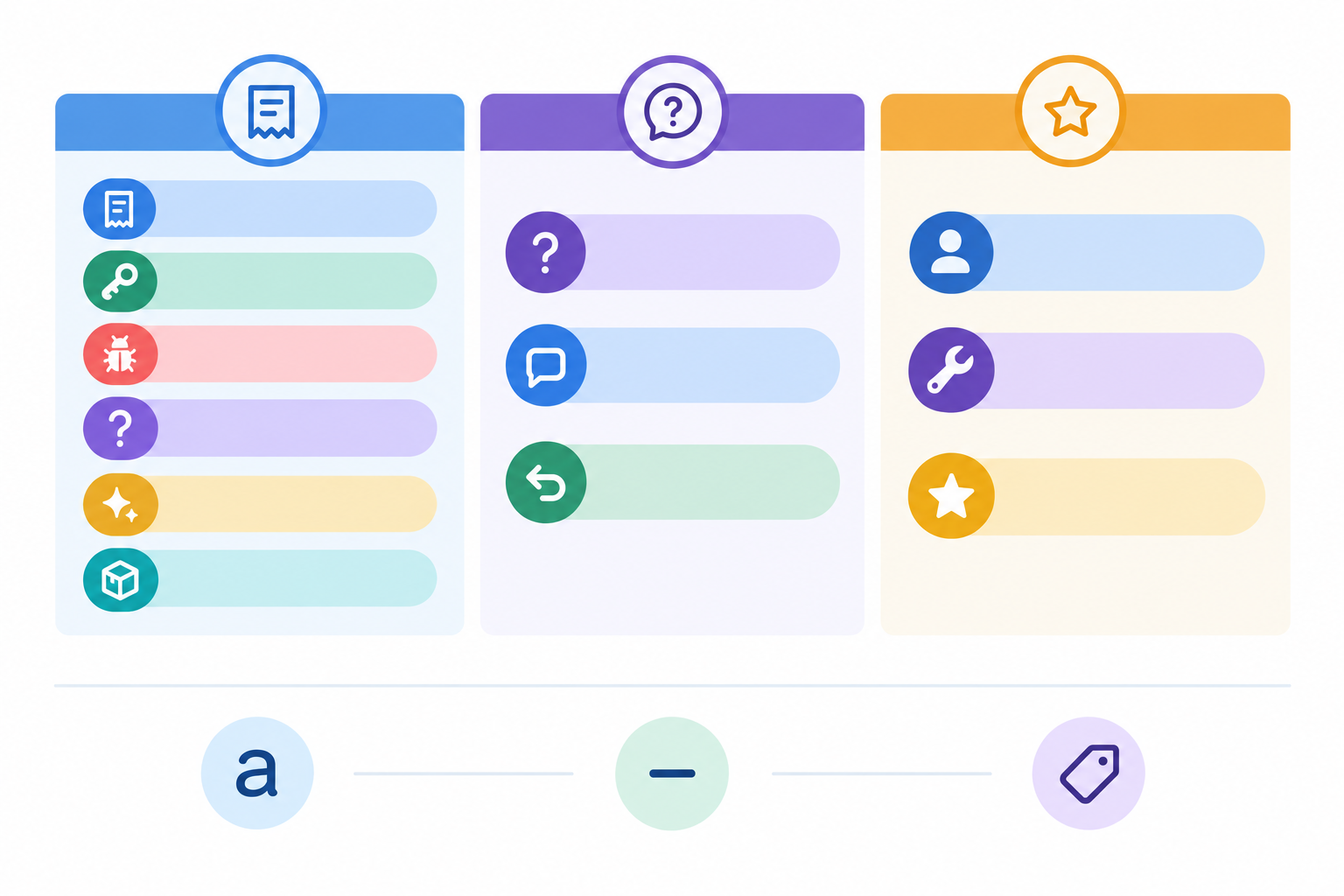
Here are 12 tags in three groups. That's enough to cover most SaaS and e-commerce conversations without anyone needing a cheat sheet.
Topic: what it's about
billinglogin-accessbughow-tofeature-requestshipping-returns
Type: what kind of message it is
questioncomplaintrefund-request
Flags: things that change how you handle it
waiting-on-customerneeds-devvip
Use one topic tag per conversation
Here's the policy I'd use: every conversation gets exactly one topic tag, plus as many type or flag tags as genuinely apply. If a conversation spans two topics, pick the one that caused the contact as the topic tag. Record the other issue in an internal note, not a second topic tag.
So a failed payment is billing plus question. If the customer wants their money back, swap question for refund-request. If the failed payment also locked their account, the topic stays billing, and a quick note says "account locked as a result". That keeps your reporting clean, because topic counts add up to your total volume (more on that below).
One overlap to watch: waiting-on-customer does the same job as a "waiting" status if your inbox has one. If it does, use the status and drop the tag, which leaves you with 11 tags. Keeping the same information in two places means one of them will go stale.
An e-commerce shop might swap bug and login-access for order-status and product-info. A SaaS team might drop shipping-returns altogether. Treat the list as a starting point, not scripture.
Tag naming rules that save arguments
- Lowercase.
Billingandbillingshould never both exist. - Hyphenated.
login-access, notlogin accessorLoginAccess. - Singular.
bug, notbugs. - One meaning per tag. If
urgentmeans "the customer is cross" to one person and "the server is down" to another, it's two tags or none.
And don't tag by customer name or by agent. Names belong in contact details and ownership belongs in assignments. Tagging acme-ltd will clog your list within a month.
How many tags are too many?
If agents have to scroll to find a tag, or pause and debate which one to pick, you have too many. For a team of three, aim for under 20, with 10 to 15 as the sweet spot.
I once watched a four-person online shop build a beautiful 60-tag system on a Monday. By Friday, half the conversations were untagged and the other half used three tags each, inconsistently. That's one team, not a study, but it matches what I've seen elsewhere: smaller really is better.
When should you tag a support conversation?
My default is to tag on first touch, then adjust at resolution. A customer who writes "I can't log in" might turn out to have a billing issue because their card failed. The first tag gets the conversation into the right filters straight away, and the final tweak keeps your reporting honest.
If your team is busy, tagging twice can feel like double work. In that case, tag once at resolution and rely on filters for channel and assignee in the meantime. The exception is flags like needs-dev and vip. Add those immediately, because they change how the conversation is handled.
Create shared inbox filters that surface what matters
Most people treat filters as a search tool, something you reach for when hunting a specific message. In a good support workflow, your filters are your daily to-do list. You open them in the same order each morning, and they tell you what to do next.
Five things cover nearly everything you'll want to filter by:
- Status (open, waiting, resolved)
- Assignee (who owns it)
- Channel (live chat or email)
- Tag (what it's about)
- Age (how long since a particular event)
Status names differ between tools, so here's how I use them. "Open" means a conversation that still needs action from someone. "Waiting on us" means the customer's message was the last one and we haven't replied. "Waiting on customer" means we've replied and are waiting to hear back.
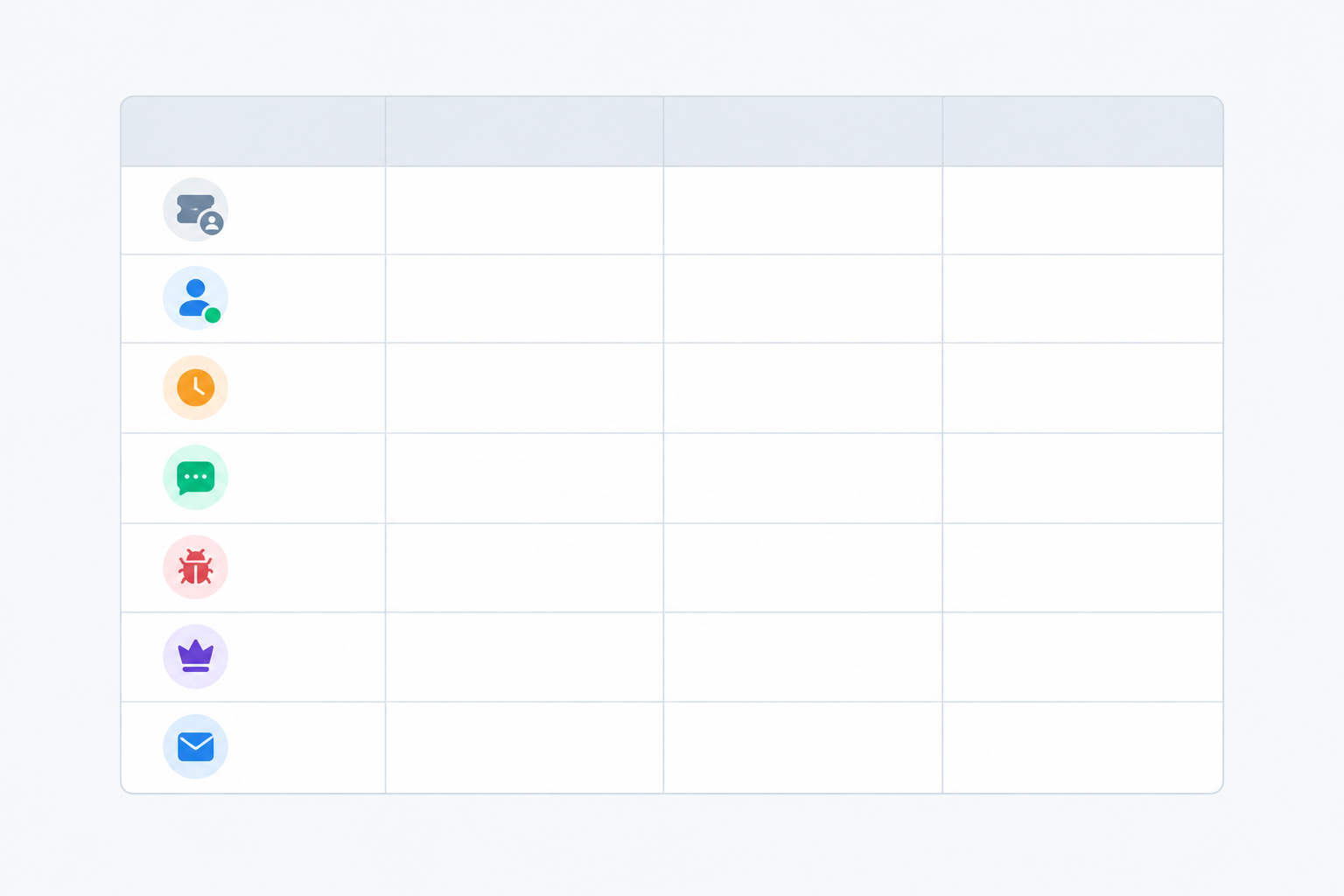
Seven saved filters for a small support team
Build these once and save them, so everyone gets the same shortcuts. Your tool may use different names or not offer every option, so adapt as needed.
- Unassigned (all channels). Status is open, assignee is empty, any channel. If you only build one filter, build this one.
- Mine and open. Assignee is you, status is open. Your personal list of things to act on.
- Waiting on us. Status is open and the customer sent the last message, sorted oldest first. This is your "oops" catcher. See the next section for how to add a time threshold.
- Live chat today. Channel is live chat, status is open, active today. Chat moves fast, so give it its own view.
- Bug or needs-dev. Status is open, tag is
bugorneeds-dev. The list you hand to your developers, or check before a release. - VIP. Status is open, tag is
vip. A short list, but worth a daily glance. (If you'd rather call it "priority", rename the tag too, so filter and taxonomy match.) - Waiting on customer, 3+ days. Status is waiting (or tag is
waiting-on-customerif you kept it), and our last reply was more than three days ago. These are candidates for a gentle nudge or a friendly close.
Choose the right time threshold for inbox filters
Filters 3 and 7 depend on which event starts the timer, and on whether your tool can count working hours at all. There are two versions:
- If your tool supports working hours: add "customer's last message more than 4 working hours ago" to filter 3, using your team's opening hours.
- If it only counts calendar time: keep filter 3 as the plain oldest-first list and name it
3 Waiting on us (calendar time). Then check it at the start of each working day and again mid-afternoon, and treat anything from the previous working day as overdue. For filter 7, a calendar threshold of three days works fine, though weekends will count.
Either way, you want the time since the customer's last message, not the conversation's last activity. Many tools count internal notes, tag changes and reassignments as activity, which can reset the clock and hide a conversation that's been ignored. If your tool only offers "last updated", test it with a dummy conversation before you trust it.
A five-minute daily support inbox routine
- Check Unassigned and claim what's yours.
- Check Mine and open and plan your morning.
- Check Waiting on us and clear the oldest first.
After that, dip into the others as needed. In my experience, the oldest-waiting check alone catches most of the awkward slips.
Set filters around UK customer support hours
Match your filters to what you've actually promised customers. If your website says "we reply within one working day, Monday to Friday, 9 to 5 UK time", then your "waiting too long" threshold should reflect those hours, not the calendar. A message that arrives at 5:45pm on Friday shouldn't look overdue at 9:45am on Saturday.
If your tool can't pause the clock, agree a Monday-morning habit of sweeping weekend arrivals first. Bank holidays work the same way: if you're closed on the Monday, put it in your team calendar so nobody panics on the Tuesday.
Two more UK points. If you sell to consumers, refund and returns requests can carry legal rights and timeframes that depend on what you sell and how. Check the current guidance on GOV.UK or Citizens Advice for your type of sale, then agree your own internal deadline. A refund-request tag helps you find these conversations, but it won't track a deadline, so put the due date in an internal note. And because notes sit alongside customer data, keep them factual and avoid recording more personal detail than you need.
Name saved filters consistently
It sounds boring, but it matters. Start names with a number or short prefix so the list stays in the same order for everyone: 1 Unassigned, 2 Mine, 3 Waiting on us. If one person calls it "Needs reply" and another calls it "Waiting on us", you'll spend half your standups confused.
Assignment habits that prevent dropped support tickets
Tags and filters tell you what's happening. Assignments decide who does something about it. This is where most shared inboxes quietly fall apart, because "everyone can see it" slides easily into "nobody's dealing with it."
There are three common ways to hand out work:
- Claim-from-queue. Agents pick conversations from the Unassigned list. Flexible and fast, but the awkward ones can linger.
- Round-robin. Conversations are dealt out evenly. Fair on paper, but it ignores who's on shift, who's part-time, and who's best at billing questions.
- Topic ownership. One person owns billing, another owns bugs, and so on. It builds expertise, but it creates single points of failure (hello again, hero).
A hybrid assignment workflow for small teams
For a team of three, I'd mix the first and third ideas lightly:
- During their shift, agents claim from Unassigned.
- Each day, one person is the named inbox lead. Their extra job is to sweep up anything left unclaimed so nothing sits there overnight.
- The role rotates, so it never feels like a punishment.
Set a clear ownership rule for every conversation
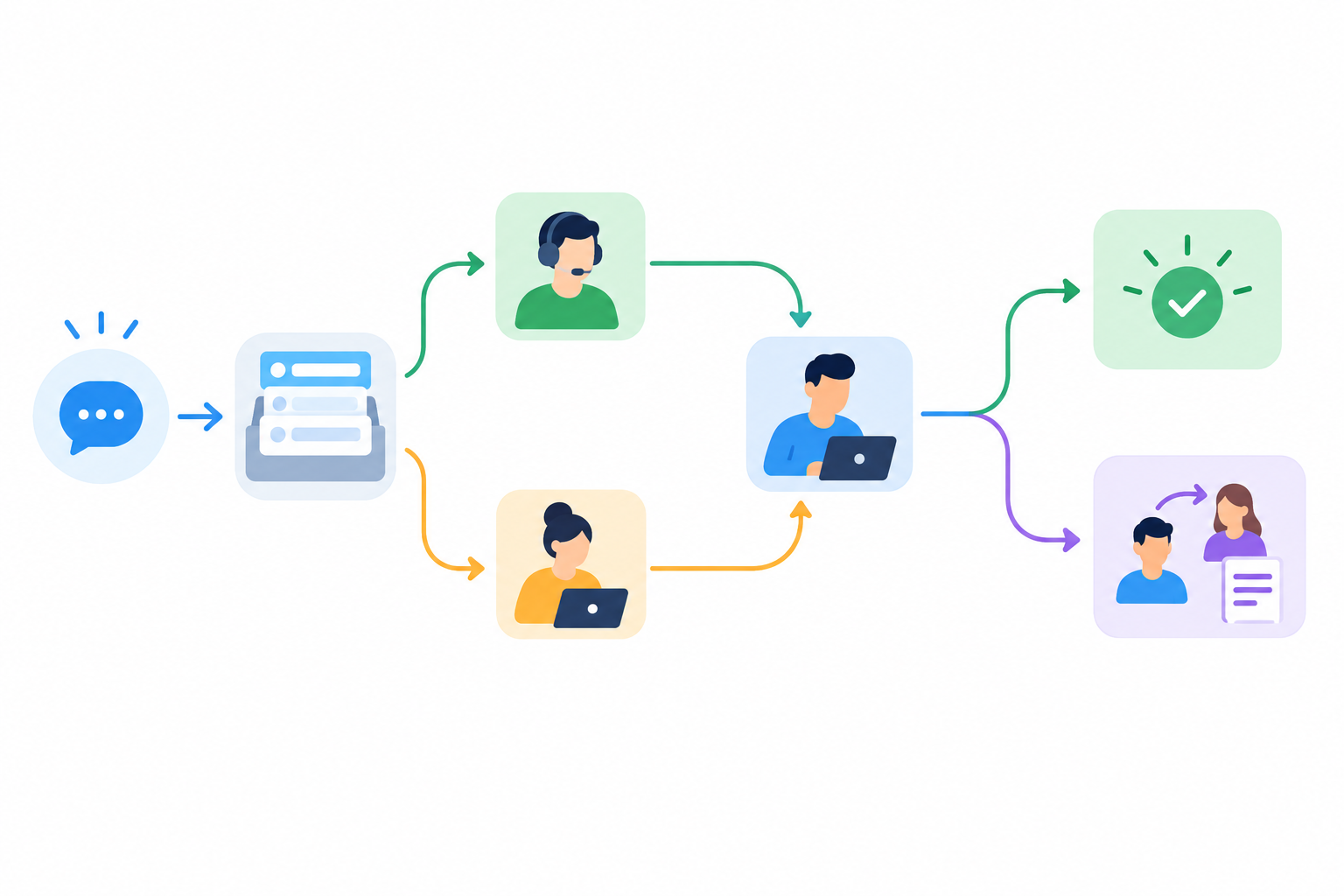
By default, every open conversation has exactly one owner. If you reply, you own it, or you hand it over deliberately. That one habit tackles both failure modes: the double reply (because you can see who owns it) and the silent drop (because someone always does).
Real life has a few wrinkles. These are defaults I'd start with, so adjust them to suit your team:
- Waiting on the customer: ownership stays with whoever sent the last reply, since they'll be the one to nudge or close it. Some teams prefer to keep it with the original owner. Either works if you pick one.
- Needs a specialist: either reassign it with an internal note, or keep ownership and ask for input via @mention. Decide on purpose. The question to ask is, "who is responsible for the customer's next reply?"
- Someone's off or covering: reassign for the duration, with a note, rather than hoping the inbox lead spots it.
- Collaborative cases: one person owns the customer-facing thread, and others contribute through notes.
A tag or an @mention is not a handoff. It tells someone there's something to look at, but it doesn't change who's accountable.
Keep support assignments fair
- Rotate the hard queues. Billing disputes and tricky bugs are draining, so share them out week by week.
- Glance at open counts. If one person's number is wildly higher, rebalance.
- Account for part-time hours. A fair load for a four-day-a-week teammate looks different from a full-timer's.
Plan live chat coverage
Live chat is the one channel where silence is obvious. Agree who's on chat and who's on email in set blocks, say two-hour stretches, then swap. The person on chat can grab quick emails between conversations, but the widget comes first. It's much calmer than everyone half-watching chat while trying to write a careful email.
Use an end-of-day shared inbox checklist
Before you log off:
- Nothing left in Unassigned
- Nothing in Waiting on us past your threshold
- Anything you're handing over has a clear note
It takes two minutes and saves a lot of next-morning scrambling.
Use internal notes for clear support handoffs
At some point, a conversation changes hands. Someone's shift ends, a developer needs to look at something, or the person who knows billing is back tomorrow. How you hand over decides whether the customer feels looked after or has to explain everything again.
Internal notes keep that context inside the conversation, rather than in a side chat thread that's lost within a day. Whoever opens it next sees the whole story in one place.
A simple internal handoff template
Four lines is plenty:
- What the customer wants: the outcome, in one sentence.
- What I've tried: so nobody repeats it.
- What's left to do: the next step.
- Deadline or promise: anything you've told the customer.
Imagine it's 4:50pm and you're handing a billing question to a teammate:
Wants: refund for a duplicate charge on 12 March.
Tried: confirmed both charges in the payment dashboard; refunded one already.
Left: check that the refund lands, then confirm with the customer.
Promise: told them they'd hear from us by tomorrow lunchtime.
That's under 40 words, and your teammate can pick it up cold. Reassign the conversation too, so the note and the ownership move together.
Flag tone and keep the customer-facing thread clean
Notes carry more than facts. A line like "frustrated, second contact this week" tells the next person to lead with an apology and skip the chirpy opener. Questions to colleagues, half-formed theories and "does anyone know why this happens?" all belong in notes too, with an @mention if you need someone's attention, so the customer-facing thread stays tidy.
Use support tags to improve reporting
Here's the payoff for all that tagging. Tags turn a pile of conversations into themes, and themes help you answer three questions: what drives our volume, where are we slow, and what should we fix in the product or help centre?
Read tag counts alongside your response time and team performance reports. Volume on its own is just a number. Volume plus slow replies tells you where to focus.
Say 30 percent of last month's conversations were tagged login-access. That's a loud signal. It probably means your password reset flow is confusing, or your help article for it isn't easy to find. Fixing that one thing could take a big chunk of the load off your inbox.
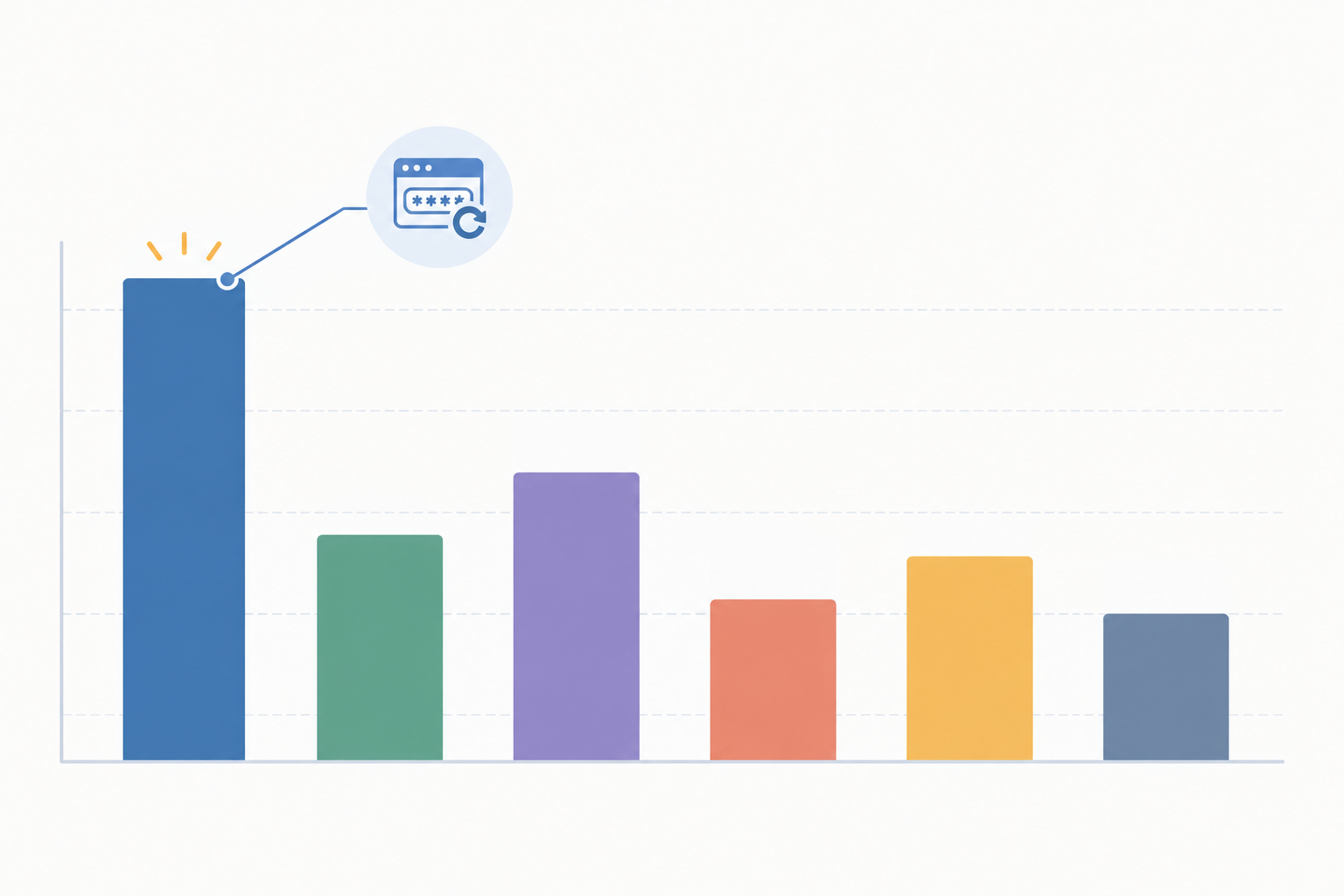
This is why the one-topic rule matters. If every conversation carries exactly one topic tag, your topic counts add up to your total volume, and the percentages mean something. Type and flag tags can overlap, so read those counts on their own rather than adding them up.
Build a monthly support reporting digest
bug and feature-request are especially useful for your product or dev team. Once a month, pull the conversations with those tags and send a short summary: the top three bugs, the most-requested features, and a couple of customer quotes. It's evidence rather than opinion, which developers tend to appreciate.
One caution: don't over-read small samples. If you get 15 conversations a day, three billing questions on a Tuesday isn't a trend. Look at patterns across a month.
Review and prune your shared inbox workflow monthly
You won't build this once and forget it. Customers change, products change, and what felt essential in January might be pointless by June. Put a 30-minute review in the calendar on the same day each month:
- Check your top and bottom tags by volume. Merge or retire the rarely used ones. If
shipping-returnsappeared twice all month, it may not deserve its own slot. - Look for inconsistent tagging. If two agents use
complaintdifferently, write a one-line definition. - Review your saved filters. Delete any nobody opened.
- Check response times and the oldest waiting conversations. Gaps here often point to a topic no one is claiming.
- Agree on one improvement for next month. A new help article, a saved reply, a clearer tag. Just one.
Keep it gentle. The system should grow with the team, and it shouldn't turn into homework. If a review becomes a two-hour debate, you've over-engineered something, so simplify.
Set up your support workflow in an afternoon
Here's a half-day plan you can run with your team:
- Hour 1, tags. Agree your tag list, naming rules and one-topic policy, then create them in your inbox. Decide whether
waiting-on-customeris needed or a status covers it. - Hour 2, filters. Build the seven starter filters, check which clock your tool uses, and agree your naming convention.
- Hour 3, assignments. Decide how you'll claim conversations, who covers chat and email in which blocks, and who's inbox lead tomorrow.
- Hour 4, handoffs and a test run. Write your handoff template, run a test conversation through the whole system, and book your first monthly review.
None of this needs a particular product. The goal is simply that nobody has to be the hero. 🙌
A note on Sonny: it's the product we build, so take this as a disclosure rather than a recommendation. At the time of writing it's flat-rate at $19.99 a month (USD) with unlimited agents, and there's a seven-day free trial with no credit card required. Please check our pricing page for current terms before you start.
Frequently asked questions about support workflows
How many tags are too many?
When agents hesitate over which one to pick. For three people, under 20 is a sensible ceiling. Add a tag only when you'd use it in a filter or report, and retire any that go unused for a month.
What should I filter by in a shared inbox?
Start with status, assignee, channel, tag and age. The main catch is the clock: check whether your tool measures time since the customer's last message or since any activity, and whether it can count working hours.
How do I assign conversations fairly?
There's no perfect formula. Claiming from a shared queue plus a rotating inbox lead works well for small teams, as long as you occasionally compare open counts and allow for part-time hours.
How do tags feed into reporting?
With one topic tag per conversation, topic counts add up to your total volume, so you can see what drives your workload. Read them next to response times, and over a month rather than a day.
Do I need different workflows for live chat and email?
Not usually. The same tags and filters cover both. The difference is timing: chat needs faster replies, so give it its own filter and a clear cover rota.
Related Articles
Create content like this automatically
Scribe uses AI to generate high-quality blog posts that engage your audience and drive traffic.