Mobile Support Apps: How to Manage Customer Conversations On the Go

Customer Support Software on Your Phone: A Practical Guide for UK Small Teams
Yes, you can handle most day-to-day customer support from your phone. You need a tool with a reliable mobile app, a shared inbox that stays in sync across devices, and notification controls that work for you. The trick is choosing software where mobile is a proper part of the product, then setting a few simple boundaries so you stay responsive without being on call around the clock. 📱
I'm Emma, and I write about how small teams handle support. Most of them aren't at a desk from nine to five, and their tools need to cope with that. The team scenarios below are hypothetical examples, not case studies. We'll walk through what good mobile support looks like, how to test a tool before you commit, and how to keep it all calm.
Why Mobile Access Matters for Small Teams
Picture a founder on a delayed train, one earbud in, thumbing out a reply to a customer who can't find their invoice. Or a co-founder in the school pickup queue, spotting a new live chat and answering before the bell rings. That isn't poor work-life balance. It's what early-stage support often looks like.
Small teams rarely have a dedicated support desk. Founders wear several hats, support gets shared between people with other jobs, and customers write in from different time zones. If your conversations only live on one desktop, they're only visible when one person is sitting at it.
Speed matters when you only have a handful of customers, because each interaction shapes their impression of you. Zendesk's CX Trends 2023 report found that roughly seven in ten consumers expect immediate service when they contact a company. That's a survey of customer expectations, mostly across larger markets, so it doesn't prove that any particular app will speed up your replies. Still, it's worth remembering. You probably can't promise instant answers all day, but you can make sure someone sees the message quickly and acknowledges it.
It also helps to be clear about what mobile support is for. It's about staying in the loop, not working more hours. A good app lets you glance at a conversation, reply or hand it off, and get on with your day.
There's a team angle too. When every conversation sits in a shared inbox, people can assign an owner, leave internal notes for context and make handoffs explicit. That cuts the risk of two people replying to the same customer, or of a message sitting unnoticed because everyone assumed someone else had it. Support ticket management on a phone comes down to the same questions as on a desktop: who owns this, what's been said, and what happens next?
Can You Run Customer Support Entirely From Your Phone?
Honest answer: for most small teams, yes for daily conversations, but not for everything.
What tends to work well on mobile:
- Replying to live chat
- Quick email responses to straightforward questions
- Tagging conversations so they're easy to find later
- Assigning a conversation to a teammate, with an internal note
What's usually easier on a bigger screen:
- Digging into reports on response times and team performance
- Writing long help articles or knowledge base content
- Complex setup changes, like reorganising tags or tweaking workflows
Imagine a hypothetical two-person team, Priya and Tom, running a small software product. Priya does the desktop work on Monday and Thursday mornings: reviewing reports, updating help docs, tidying tags. The rest of the time, she and Tom cover live chat and email from their phones, whichever of them is nearer to a screen. When Tom spots a billing question he can't answer, he assigns it to Priya with a quick internal note. No forwarding, no 'did you see this?' texts.
That hybrid approach is completely normal. You don't have to choose between 'phone only' and 'desk only'. You just need the same customer support inbox in both places.
What to Look for in a Mobile Customer Support App
Mobile help desk software varies a lot. Some apps are designed around the phone. Others are a shrunken browser page that technically works but leaves you pinching and scrolling. Here's what I'd check before committing.
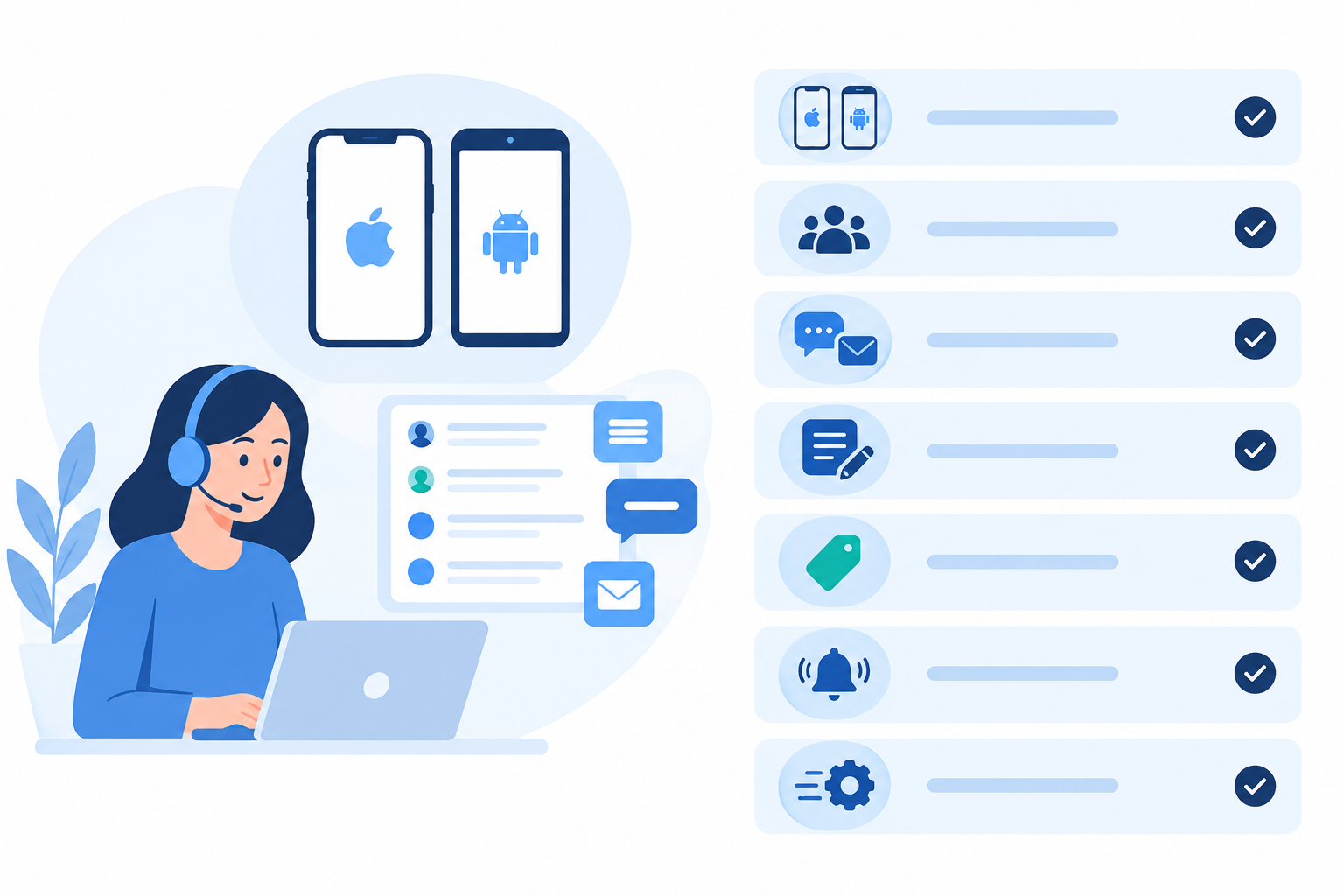
- Apps for the platforms your team uses. Check for iPhone and Android apps (and Mac, if your team uses it), and read recent app store reviews and update dates. A dedicated app can offer better push notifications and a smoother feel, but that depends on how well it's built, so test it rather than assuming.
- A shared inbox that syncs quickly. If you and a colleague open the same conversation, you should see each other's replies, assignments and status changes without refreshing. That's what prevents double replies.
- Live chat and email ticketing in one place. You shouldn't have to hop between apps to answer a chat and then an email. One customer service inbox for both channels keeps the picture whole.
- Internal notes, tagging and assignment on mobile. If you can't hand something off with context from your phone, the app isn't really supporting your team.
- Notification controls. Look for control over what alerts you, when, and how. We'll come back to this below.
- A clear reliability commitment. Ask about uptime guarantees or service level agreements, and check whether the provider has a public status page showing past incidents.
- Sensible security and data handling. You'll be holding customer personal data on a phone, so UK GDPR applies. Look for a device passcode or biometric lock, the ability to remove a leaver's access quickly, and a clear statement of where the provider stores data. The ICO's guidance for small organisations is a good starting point.
- Optional AI assistance. If a tool offers draft replies, check what they're based on and make sure a person reads every draft before it goes out. Thumb-typing is slow, so drafts can help, but treat them as a starting point rather than a replacement for your judgement.
One more thing to test: how readable a conversation is on a small screen. You should be able to see who the customer is, what they've said before, who owns the conversation and what the next step is, without hunting.
How to Compare Mobile Customer Support Software
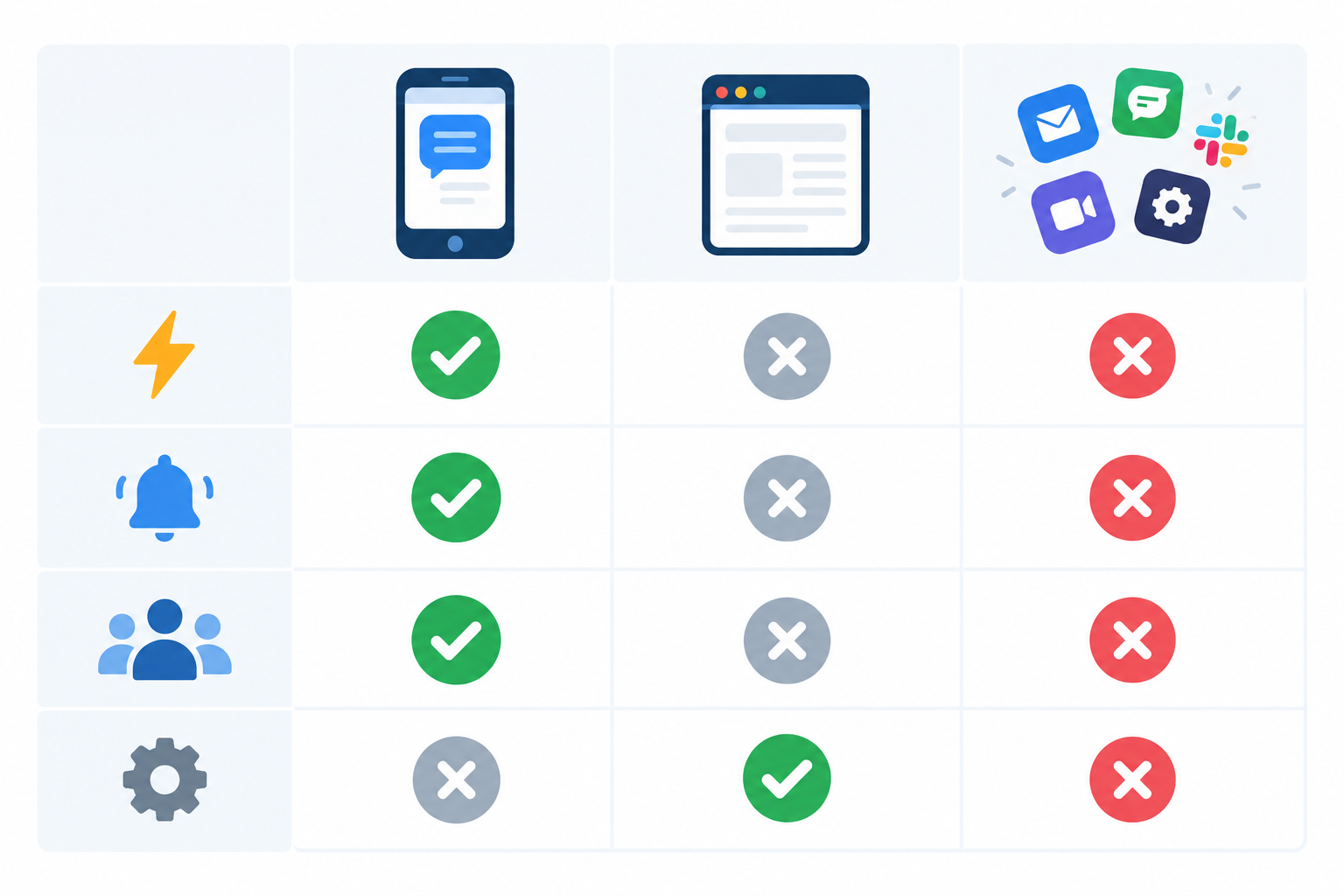
Teams usually end up with one of three setups: a native app, a mobile browser version of a web tool, or a patchwork of separate tools. The table below isn't a verdict on any of them. Results depend on the product, your phone and your settings, so use it as a list of things to check yourself during a free trial.
| What to check | Native app | Mobile browser only | Patchwork of separate tools |
|---|---|---|---|
| Speed | Often smoother, but test on your own phone | May feel heavier, depending on how the page is built | Varies, and you're switching between apps |
| Notifications | Push alerts are possible, but check controls and delivery on iPhone and Android | Often more limited, so check what's supported | Spread across several apps, easy to miss or duplicate |
| Team visibility | Everyone should see the same inbox; confirm updates appear promptly | Same inbox, but check how usable it is on a small screen | Conversations may be split across places |
| Ease of setup | One install and sign-in, but check permissions | No install, though check how the daily experience feels | Multiple accounts and integrations to maintain |
Here's a trial checklist that gets at the real differences:
- Send yourself test messages through live chat and email, then check how quickly the alert arrives on both an iPhone and an Android phone if your team uses both.
- Switch to airplane mode or a weak connection (a train tunnel is a good test). See what you can still open, whether a half-written draft survives, and what happens to a reply when the connection returns.
- Assign a conversation from one phone to another and check that the other person sees the owner and your internal note straight away.
- Try replying to the same conversation at the same time on two devices and see whether the tool warns you.
- Lock and unlock the app, and see how login and biometric protection behave.
- Remove a test user and confirm their access ends immediately.
Running real conversations through a tool for a few days will tell you more than any feature list. A busy Tuesday is a better test than a demo.
Customer Support Software Pricing and Mobile Access
Pricing affects mobile coverage more than people expect. With per-seat pricing, teams often quietly decide who 'really needs' access, and if only two of your six people have seats, the other four can't pick up a chat when it matters. Flat-rate plans with unlimited agents remove that decision, though they can cost more if you only ever need one or two users. Neither model is right for everyone. Work out how many people will realistically touch support, including part-timers and founders who only dip in, and compare the total.
A few UK-specific points are worth checking before you sign up. Is the price shown in pounds, or converted from dollars at a changing rate? Does it include VAT or add it at checkout? Are there limits on conversations, channels or AI features that kick in on cheaper plans?
For transparency, I work on the team behind Sonny, which offers a flat-rate plan with unlimited agents, an optional AI copilot and a free trial. Plans, limits and prices change, so check the current pricing page for the GBP price, VAT treatment and trial terms rather than relying on this article. Whichever provider you consider, ask for the same details in writing.
Responding to Live Chat From Your Phone
Live chat is where mobile really earns its keep, because customers expect a quick back-and-forth. Here's a simple routine that works.
- Install the app and sign in. Conversations from your live chat widget should now arrive on your phone as well as your desktop. Allow notifications when prompted, or you'll wonder why nothing is pinging.
- Set your availability. Let customers know when someone is genuinely around. It's much better to say 'we'll reply within a few hours' than to promise instant answers you can't deliver.
- Use saved replies or AI-assisted drafts for common questions. They spare you long typing sessions on a tiny keyboard. Always read a draft before you hit send, especially on anything involving refunds, accounts or personal data.
- Keep answers short and clear. Chat is for quick wins. If something needs a longer explanation, screenshots or a step-by-step guide, tell the customer you're moving it to email and carry on there.
- Add an internal note and a tag before you put your phone away. Something like 'Waiting on customer's order number, Tom to follow up tomorrow' means a teammate can pick it up smoothly.
A gentle tip on tone: replies typed on a phone can read as abrupt. A short, warm opener like 'Thanks for getting in touch, happy to help!' costs you a few seconds and softens everything that follows.
And test it yourself. Open your own website on your phone, start a chat through the widget and see what the customer sees. Then reply from the app. It's the fastest way to spot awkward wording, slow loading or settings you forgot to configure.
How to Keep Mobile Support Notifications Useful, Not Overwhelming
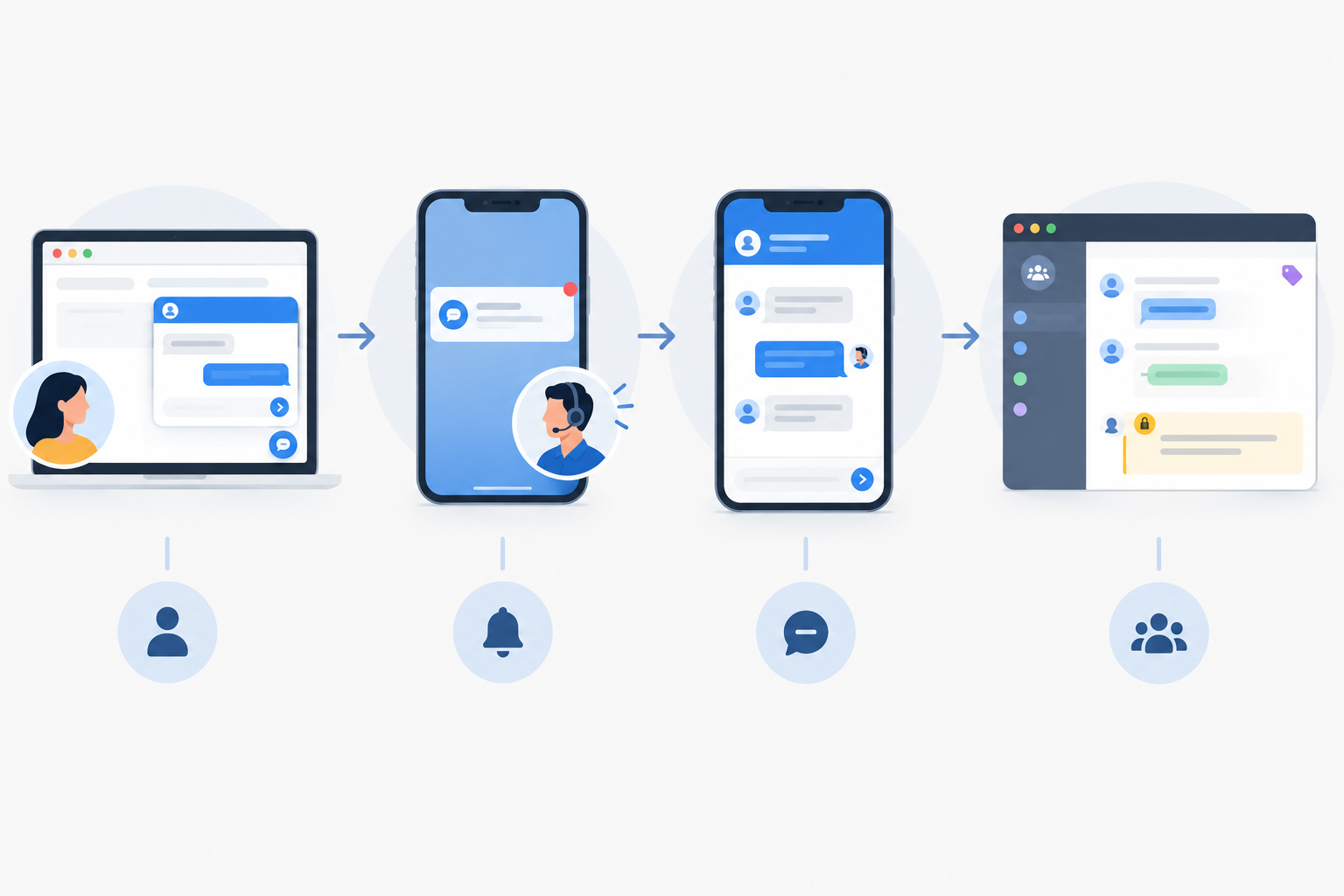
Here's the classic problem. Every message pings every person, the phone buzzes all day, and within a week half the team has muted the app entirely. Then the one message that mattered gets missed. Ironic, right?
The fix isn't more alerts. It's smarter ones. Here's what I'd suggest:
- Notify on what's yours. Get alerts for conversations assigned to you, or for new live chats during your on-duty hours. Everything else can wait in the shared inbox.
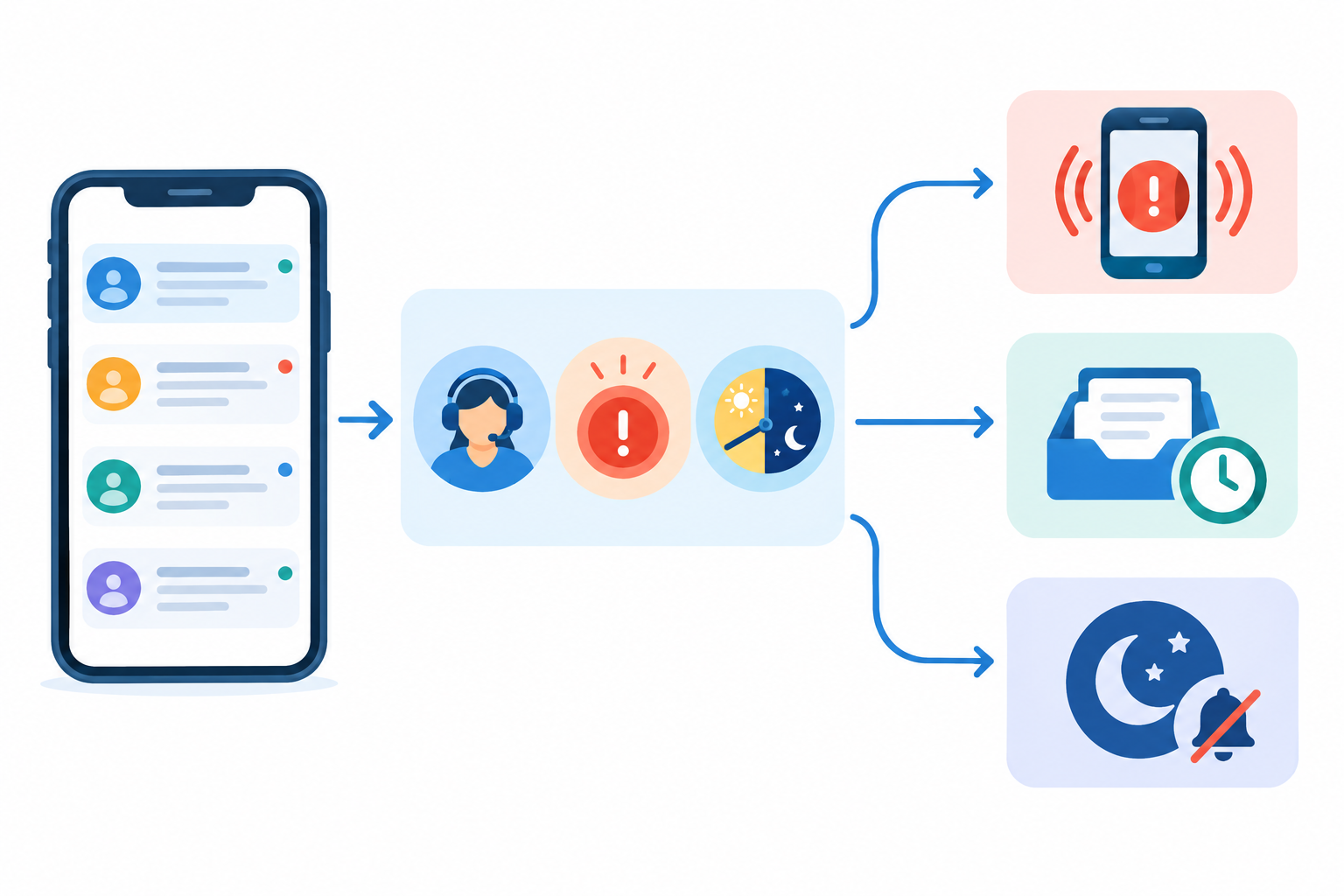
- Separate urgent from routine. Use tags and filters so billing problems or outages stand out from 'where's the pricing page?' questions.
- Create a simple rota. One person is the primary mobile responder at a time. A shared calendar entry or a note pinned in your team chat is plenty.
- Use quiet hours and different alert styles. Live chat might deserve a sound or banner during working hours, while email can arrive silently with a badge count. Also check your phone's own focus or do-not-disturb settings, since they can override the app.
- Review after the first week. Look at what was noisy, what you missed and what you ignored, then adjust.
Visibility isn't the same as alerts. Because a shared inbox shows everything to everyone, you don't need to be buzzed about every conversation to stay informed. You can open the app and look when you choose.
Sensible notification rules are also kind to your team. Microsoft's 2023 Work Trend Index reported that 68% of the people surveyed said they don't have enough uninterrupted focus time during the workday. That figure comes from a broad survey of knowledge workers, not support teams specifically, and it doesn't measure the effect of any support tool. Even so, it's a good reason to keep alerts to what genuinely needs attention.
Balancing Mobile Responsiveness With Work-Life Boundaries
Let's be honest about the pull of always-on support. If you're a founder, every customer feels personally important, because they often are. With your inbox in your pocket, it's very tempting to check it at 10pm 'just in case'.
The goal of mobile support is to keep conversations moving, not to make anyone permanently available. A few things help.
First, set clear support hours and publish them. Put them on your chat widget and help pages, in UK time, and say what happens on bank holidays. Customers are generally fine with 'we reply between 9 and 5:30, Monday to Friday' as long as you're upfront and stick to it.
Second, spread the load. When more than one person has app access, coverage can rotate instead of landing on one person. That's the practical reason to think about seat access when you compare pricing, rather than a reason to buy any one plan.
Third, handle out-of-hours gently. Use an auto-reply that sets expectations, such as 'Thanks for your message, we'll get back to you first thing tomorrow'. Then agree one clear rule for escalation: if it's an outage or a billing failure, the on-call person gets alerted. Everything else waits in the queue.
Here's another hypothetical. Imagine a five-person software team where the founder used to reply to everything until late in the evening. They move to a weekly rota, publish their hours on the chat widget and set an after-hours auto-reply. Only outages and payment failures trigger an alert to whoever is on call. The founder could plausibly get their evenings back, as long as the team keeps to the rules and customers see clear expectations.
Reporting can tell you how it's going, too. Response-time reports show whether you're meeting the expectations you've set, and a quick desktop look once a week can replace a lot of late-night worry.
Getting Started With Mobile Customer Support Software
You don't need a big project to get this working. Here's a simple path:
- Shortlist two or three tools that offer a free trial and a mobile app for the devices your team uses. Be wary of anything that needs a week of onboarding calls before you can answer your first message.
- Start the trials and run real conversations through each one, using the trial checklist above. Note whether a card is required and what happens when the trial ends.
- Connect your support email address and add the live chat widget to your site, so email and chat land in the same shared inbox.
- Invite everyone who helps with support, and check how the pricing treats extra users before you do.
- Agree your notification rules and support hours, then review them after a week and tweak whatever isn't working.
Frequently Asked Questions About Mobile Customer Support Software
Can I run customer support entirely from my phone?
For day-to-day conversations, yes. A good mobile app lets you reply to live chat and email tickets, add internal notes, and tag and assign conversations. Most teams still prefer a desktop for reporting, setup changes and longer writing, so a mix of both tends to work best.
What features should a mobile support app have?
Look for an app on the platforms your team uses, a shared inbox that syncs quickly, live chat and email in one place, internal notes, tagging, assignment and flexible notification controls. Reliability commitments, security features like biometric lock, and clear data handling under UK GDPR matter too.
How do I avoid notification overload while using mobile support?
Limit alerts to conversations assigned to you or to new live chats during your on-duty hours. Use quiet hours, tags and filters to separate urgent issues from routine ones, and agree a simple rota so one person covers mobile at a time.
Will mobile replies feel less professional to customers?
Not if you keep them clear and friendly. Saved replies, reviewed AI drafts and a quick proofread help keep quality high. Moving longer or more complex issues to email or a desktop session is perfectly fine.
Do all my team members need separate paid seats to use the mobile app?
That depends on the provider. Some charge per seat, which can limit who gets access, while others use flat-rate plans with unlimited agents. Check the current price in pounds, whether VAT is included, and any limits on conversations or features before you decide.
Final Thoughts: Choosing Customer Support Software for Mobile Teams
Mobile support doesn't have to mean being glued to your phone. With a well-built app, a shared inbox that keeps everyone in sync, and a few sensible boundaries, you can answer customers quickly from wherever you happen to be, then put the phone down and get on with your life. ☕
If you want to know how a tool feels, try it with real conversations. A few days of testing on your own phone will tell you more than any feature list, and you'll quickly see whether it suits the way your team actually works.
Related Articles
A Pre-Switch Checklist Before Choosing New Support Software: How to Turn Your Free Trial Into a Real Evaluation
Switching support software? Turn a 7-day free trial into a structured test of customer support software, live chat, email and team fit.

How to Manage Customer Support Across Multiple Products with One Shared Inbox
Learn how a shared inbox helps one support team manage multiple products with clear ticket routing, team collaboration and specialist expertise.
Create content like this automatically
Scribe uses AI to generate high-quality blog posts that engage your audience and drive traffic.